
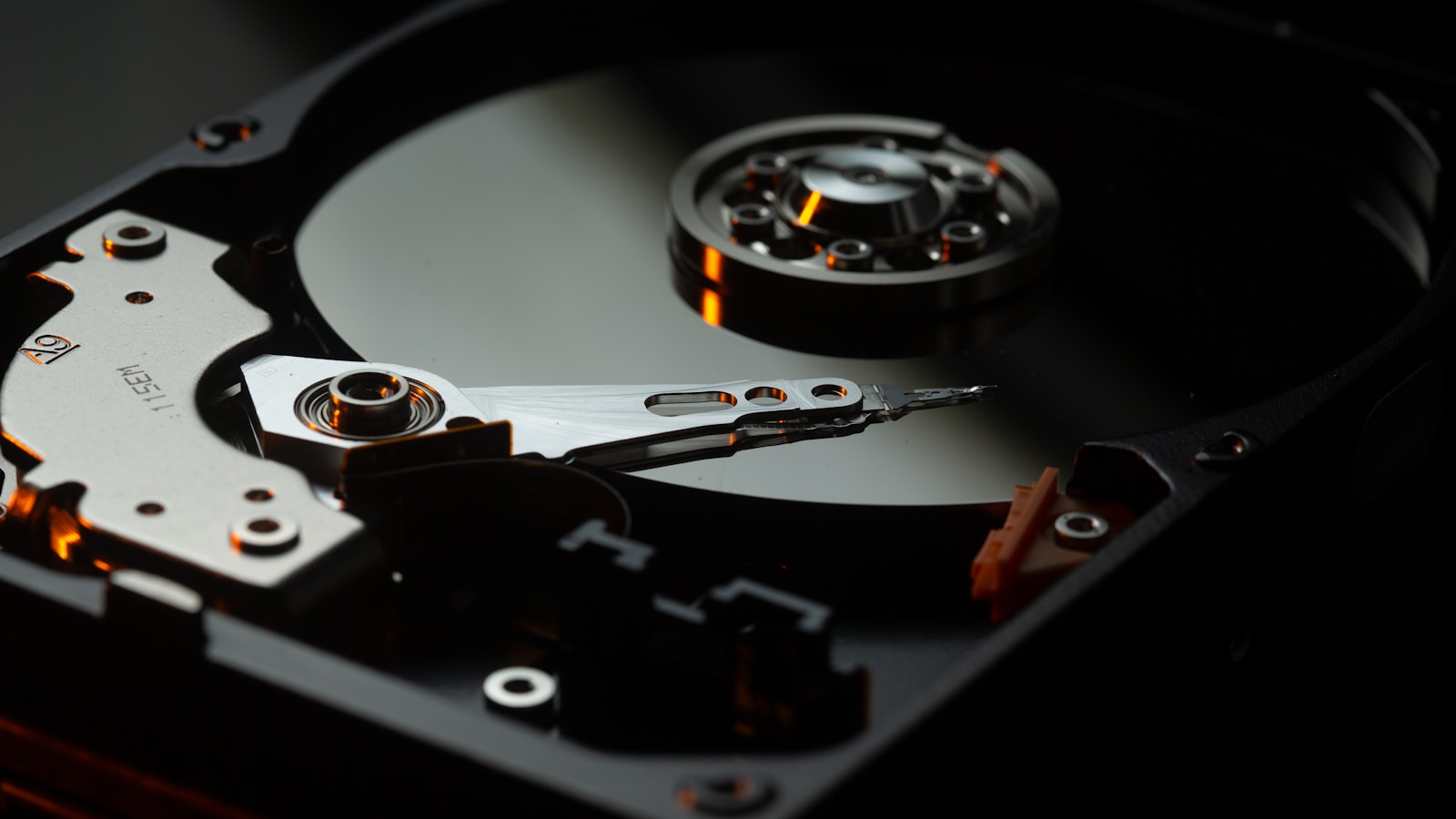
If your phone died right now, how much would you lose? For most people, the answer is "everything they care about". Photos, contracts, school work, customer data. Yet 70% of users have never tested a backup. This guide shows how to back up your data properly in 2026 — once, then forget about it.
The 3-2-1 rule (the only one you need)
- 3 copies of your data.
- 2 different storage media (e.g. internal drive + external SSD).
- 1 off-site (cloud or a drive at a different physical location).
Built originally for IT pros, the same logic protects you against the three real threats: hardware failure, theft / fire / flood, and ransomware.
What to back up
- Documents, projects, code repos.
- Photos and videos.
- Email archives.
- Bookmarks, password vault export.
- App-specific exports (Notes, Notion, Drive, calendars).
- Configuration: dotfiles, browser profile, terminal settings.
The 2026 stack that works
Layer 1 — your live device
Your laptop or phone counts as the first copy. Modern OSes have built-in versions:
- macOS Time Machine — set it once with an external SSD or NAS. Hourly snapshots, year of history.
- Windows File History + Restore Points — basic but works.
- Linux Timeshift / Rsnapshot — same principle.
Layer 2 — local external drive
- Buy a 2 TB SSD (€80-€140) or 4 TB HDD (€90).
- Plug it in once a day or schedule auto-backups.
- Encrypt it (FileVault / BitLocker / LUKS) so a thief can't read it.
Layer 3 — cloud (off-site)
Mid 2026 picks:
- Backblaze Personal — $9/month, unlimited, set-and-forget. Best for laptops.
- iDrive — works across devices, generous family plan.
- iCloud / Google One / OneDrive — fine for files synced from a single ecosystem.
- Proton Drive / Sync.com — end-to-end encrypted, privacy-first.
- rsync.net + restic / Borg — geek tier, very cheap, very flexible.
Photos and videos (separate strategy)
Photos balloon. Treat them with their own backup:
- Original library on the device.
- Auto-upload to Google Photos / Apple iCloud / Amazon Photos.
- Yearly export to your local SSD.
- One off-site copy on a different cloud.
Phones
- iPhone: iCloud Backup nightly + a yearly archive to your laptop.
- Android: Google One backup + a yearly export of WhatsApp, photos, contacts.
- Test the restore on a spare phone every 12 months.
Encryption is non-negotiable
- Whole-drive encryption on every laptop.
- External drives encrypted (Mac: enable FileVault on the volume; Windows: BitLocker To Go).
- Cloud: prefer providers with end-to-end encryption (Proton Drive, Tresorit) for sensitive files.
Test the restore (this is where most people fail)
Untested backups have a 30-50% silent failure rate. Once a quarter:
- Pick 3 random files from different folders.
- Restore them to a temp folder from your local backup.
- Restore them again from the cloud backup.
- Open them. Confirm contents.
If anything fails, fix the chain that day — not "next week".
Ransomware protection
- Don't keep cloud backups always-mounted as a network drive — ransomware encrypts them too.
- Use immutable / versioned cloud backups (Backblaze, S3 Object Lock, Wasabi).
- Air-gap one yearly archive — a drive in a drawer / safe.
Common backup mistakes
- Only one copy on one drive.
- Forgetting to encrypt the external drive.
- Storing the only off-site backup at a partner's house — same flood risk.
- Backing up but never testing restore.
- Photos only in the phone's gallery.
- Leaving cloud backup on a free 5 GB tier and silently exceeding it.
For freelancers and small businesses
- Use a NAS (Synology DS224+ or DS923+) as the central local backup target.
- Pair with a cloud immutable backup of the NAS itself.
- Document the recovery procedure in 1 page. The successor must be able to follow it.
- Test full DR (disaster recovery) once a year.
What to skip
- Free "backup" apps with no encryption story.
- USB sticks as a long-term backup. They die unpredictably.
- Ignoring email — export your Gmail / Outlook archive yearly.
- Trusting a single ecosystem (Apple-only or Google-only). Diversify.
The 30-minute setup
- Plug an external SSD into your laptop. Enable native backup (Time Machine / File History).
- Sign up for Backblaze or iDrive. Install the agent.
- Verify your phone has cloud backup enabled.
- Set a calendar reminder for "test restore" every 90 days.
- Encrypt the external drive.
The bottom line
To back up your data properly in 2026, follow 3-2-1, encrypt everything, automate the routine and test the restore. Set up takes 30 minutes. The day you really need it, those 30 minutes will be the best decision you ever made.